

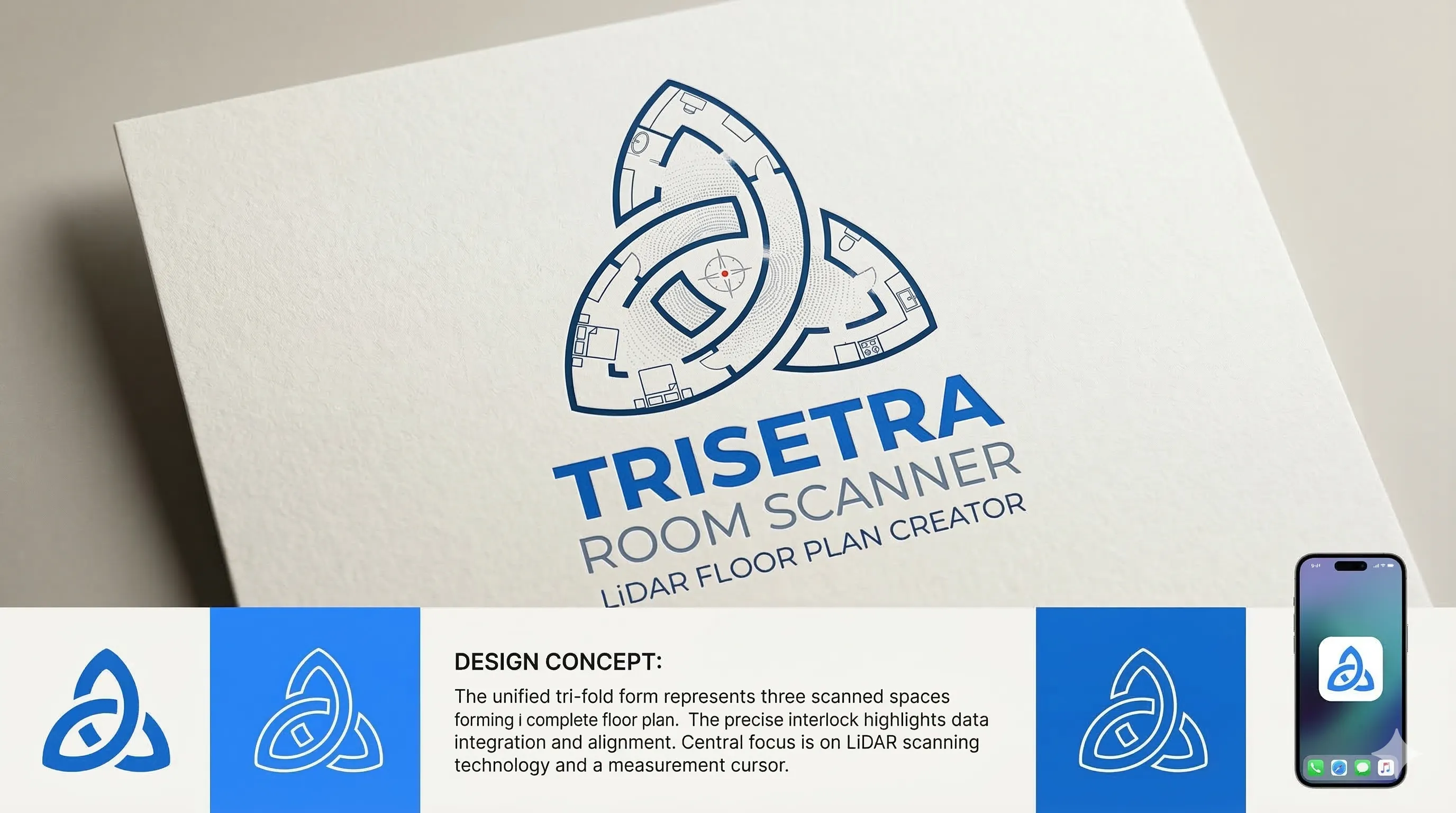
Brand-aligned App Clip entry
The public page explains what the App Clip does before the user launches it, reducing confusion for unsupported visitors.
Device availability
Anyone can learn about the feature here. To actually use it, start from app.trisetra.ai on a supported iPhone Pro or iPad Pro and tap Scan with iPhone.
Trisetra App Clip
Room Scan is part of the Decor workflow. On a supported iPhone Pro or iPad Pro, open app.trisetra.ai, find the prompt card, and tap Scan with iPhone to launch the App Clip the intended way.
No App Store installation required for the scanning flow.
Built for LiDAR-equipped iPhone Pro and iPad Pro models.
Users should launch it from app.trisetra.ai by tapping Scan with iPhone.
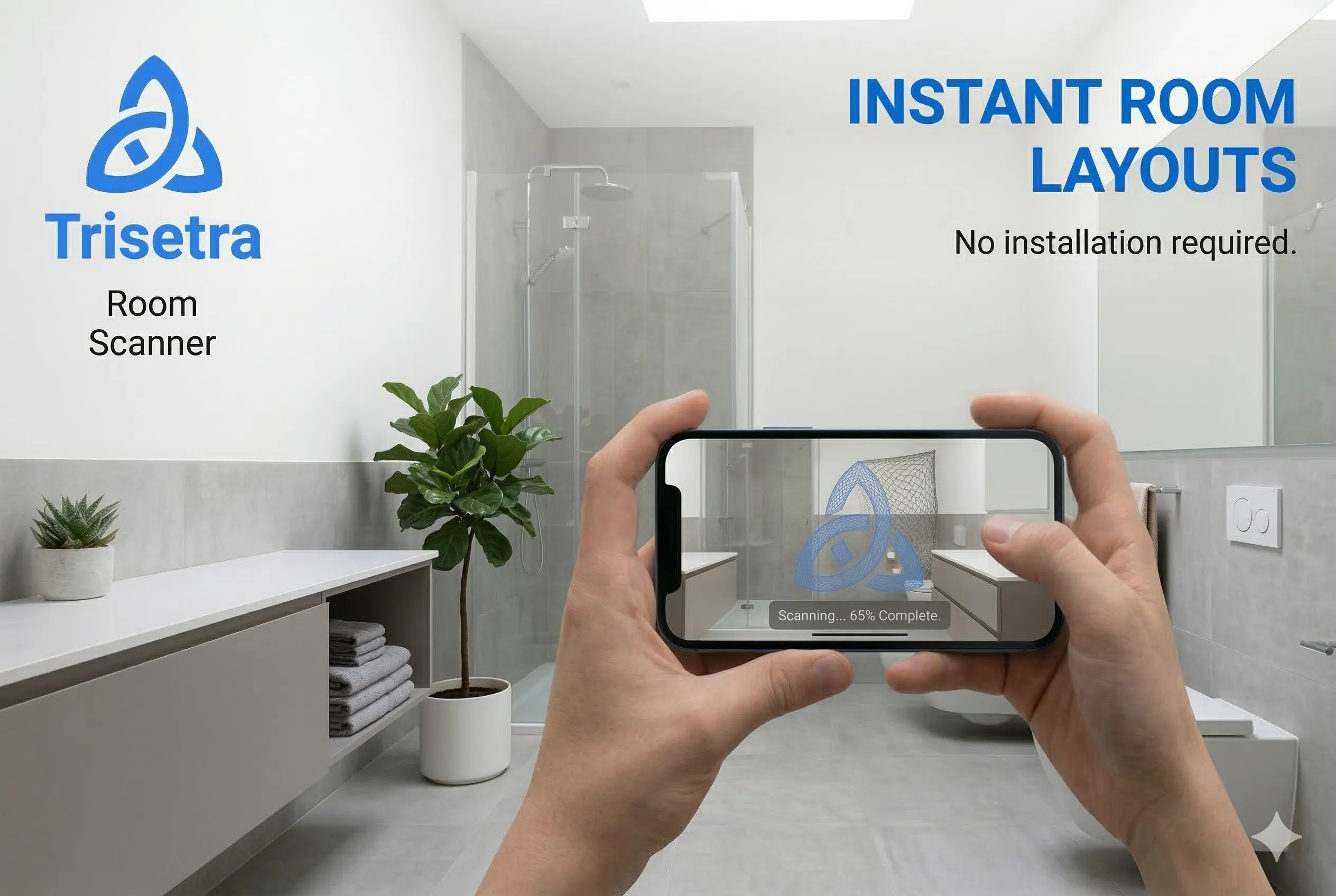
Use on the right device
This page is intentionally public-facing. Visitors on any device should understand what Room Scan does, what hardware it needs, and that the intended entry point is app.trisetra.ai rather than a standalone launch page.
Supported now
iPhone Pro and iPad Pro models
The room-scanning feature relies on LiDAR hardware for accurate room geometry capture.
Everyone else
Preview the workflow and route users correctly
Desktop and non-supported devices should be told to go to app.trisetra.ai on a supported device and tap Scan with iPhone.
Required launch path
Users should enter through app.trisetra.ai, then tap the exact Scan with iPhone action from the prompt card. That keeps the App Clip tied to the real design flow instead of exposing the invocation URL directly.
Start here instead
app.trisetra.ai
Step 1
Open Decor on a supported iPhone Pro or iPad Pro.
Step 2
Find the prompt card and tap Scan with iPhone.
Step 3
Launch the App Clip from there and continue the design flow inside Trisetra.
How it works
Go to app.trisetra.ai on a supported iPhone Pro or iPad Pro and open the describe-space flow.
Use the exact Scan with iPhone action in the prompt card to trigger the App Clip the intended way.
Complete the LiDAR scan and continue in Trisetra with room data ready for layout, design, and proposal generation.
What the feature communicates
The public page should not just launch an App Clip. It should set expectations, explain the hardware requirement, and show how capture connects to floor plans, concepts, and proposal-ready outputs.
The public page explains what the App Clip does before the user launches it, reducing confusion for unsupported visitors.
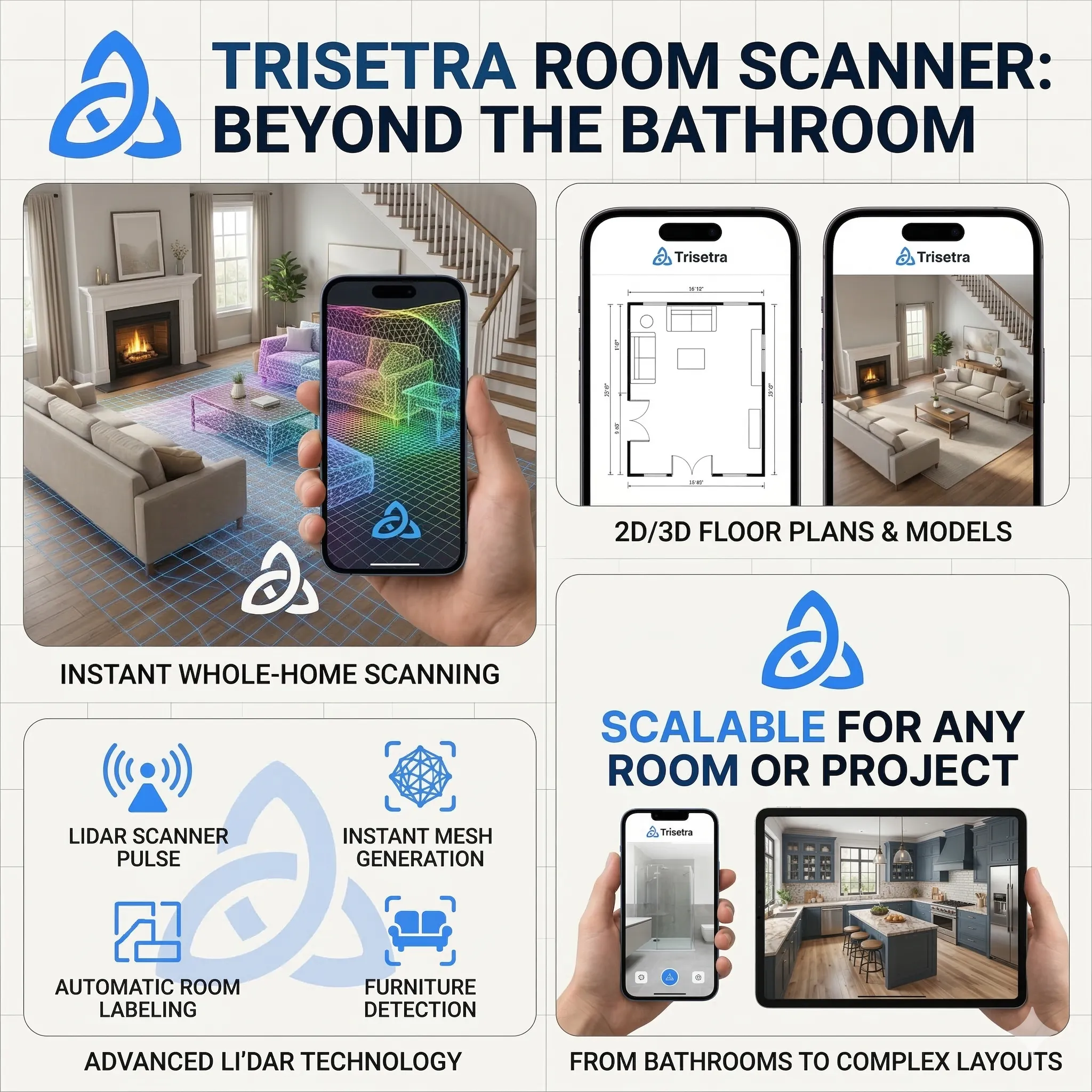
The scanning flow communicates a broader layout workflow, from bathrooms to larger room categories and floor-plan-ready context.